# Pi 3 Bluetooth
Note that on the Pi 3 to use on-board Bluetooth you may need to install Bluetooth first with `sudo apt install pi-bluetooth` but fair warning, the on-board Bluetooth has been known to freeze up the Pi (on RetroPie 3.7 or under), but it can be fixed.
### Pi 3 Bluetooth Freeze Fix (for RetroPie 3.7 or below)
```
sudo apt update && sudo apt full-upgrade
sudo apt install raspberrypi-sys-mods
```
If it asks you anything about the /etc/udev/rules.d/99-com.rules configuration file, type Y to overwrite.
If you want to use a bluetooth dongle with the pi3, you should first disable the onboard BT controller by adding `dtoverlay=pi3-disable-bt` to `/boot/config.txt`, then rebooting and plugging your dongle, which should now work.
# Adding a Bluetooth controller to RetroPie
The simplest way of setting up a Bluetooth controller is through the Bluetooth Configuration menu of the RetroPie Setup script. There are also manual methods that may vary depending on what Bluetooth controller you are using, some of which are described further below on this page.
You can access the bluetooth configuration menu from the RetroPie Menu of EmulationStation. It can also be accessed from **RetroPie-Setup Script >> Setup >> Configure Bluetooth Devices**

`1.` **Register and Connect Bluetooth Devices:** You can select your bluetooth device's mac address from here


You will get a window popping up telling you if the connection was successful or not. If it was not successful make sure that you chose the correct mac address, if it still doesn't work you may have to configure it manually (see below).
`2.` **Disconnect Bluetooth Devices:** You can disconnect your bluetooth device from this menu

`3.` **Display Registered & Connected Bluetooth Devices:** This will display the current bluetooth devices connected.

## Connection issues (input lag & ghost inputs) (especially if you connect more than one BT controller)
1. Try reducing distance from your controller to Raspberry (helps sometimes)
2. Try to disable internal WiFi - this helps to extent signal strength, [you can use this script to disable/enable Wifi on the fly](https://retropie.org.uk/forum/topic/19734) (several users report PS3 controller connections problems are vanished since)
3. Try forcing a lower baud rate in `/usr/bin/btuart`, on line 22: `$HCIATTACH /dev/serial1 bcm43xx xxxxxx noflow - $BDADDR`. Smaller values of 115200 and 230400 have been known to alleviate input lag / ghost input on a Pi 3B.
4. Buy a new BT adapter and put it to your Raspberry. Add `dtoverlay=pi3-disable-bt` in `/boot/config.txt` to disable internal BT module (ultima ratio, speeds up communication, extents range and speed depending on your BT adapter model)
## Manual Bluetooth Configuration
## !!Please note this is for pre v4.0 RetroPie - New 8bitdo details [here](8Bitdo-Controller)!!
***
The following guide is geared to using a controller from [8bitdo](http://www.8bitdo.com) but should work with a range of bluetooth devices.
The examples below are assuming you have just a keyboard and bluetooth dongle plugged into your Pi.
**Controller Firmware**
Make sure you have the latest firmware for your controller. You will need a USB cable to do this. The firmware for 8bitdo controllers is here: http://8bitdo.com/Support.html
### This section is for Jessie based RetroPie (version 3.4 and later)
 **Video Guide**: https://www.youtube.com/watch?v=Q4K3h4CIJwA
### Step 1 - Pair and connect to controller
Quit Emulation Station with F4 and type this at the command line:
`sudo /home/pi/RetroPie-Setup/retropie_setup.sh`
"U" Update RetroPie-Setup Script
"3" Setup
"Configure Bluetooth devices"
Make sure your controller is turned on in the correct pairing mode (Power on for FC30 Pro, Start+R for SFC30), then choose:
1 Register and Connect to Bluetooth device
Follow the prompts and your controller should connect
This is shown by a solid blue light on the 8bitdo controllers
Quit out of the setup script
### Step 2 - Manual file edit for 8bitdo controllers
At the command prompt, type
`sudo nano /etc/udev/rules.d/10-local.rules`
In that file add
`SUBSYSTEM=="input", ATTRS{name}=="8Bitdo SFC30 GamePad Joystick", MODE="0666", ENV{ID_INPUT_JOYSTICK}="1"`
Note: The value in the name field should read exactly as your controller reports it.
### Step 2.5 - Forcing the Pi to reconnect to the controller
**If** you find your controller doesn't automatically reconnect when you restart the Pi, this process should force the connection.
Some users have reported it will work without this if you wait for Emulation Station to fully load before turning on your controller - this is possibly model or firmware specific.
`sudo nano /bin/connect-bluetooth.sh`
In that file add
`#!/bin/bash`
`sudo bluetoothctl << EOF`
`power on`
`connect [MAC Address]`
`exit`
`EOF`
Save that file.
Make it executable
`sudo chmod +x /bin/connect-bluetooth.sh`
Then create a new file
`sudo nano /etc/systemd/system/connect-bluetooth.service`
Add this text:
`[Unit]`
`Description=Connect Bluetooth`
`[Service]`
`Type=oneshot`
`ExecStart=/bin/connect-bluetooth.sh`
`[Install]`
`WantedBy=multi-user.target`
Save that file.
Then run this command to enable that process
`sudo systemctl enable /etc/systemd/system/connect-bluetooth.service`
Video Guide for this: https://youtu.be/RsybSJEPZJM
### Step 3 - Configure controller for Emulation Station and Retroarch
Now reboot your system, turn the controller on just before the RetroPie splashscreen appears and the controller will connect (solid blue led light) and ES will prompt to configure it.
### This section is for Wheezy based RetroPie (pre version 3.4)
**Video Guide**: https://www.youtube.com/watch?v=Q4K3h4CIJwA
### Step 1 - Pair and connect to controller
Quit Emulation Station with F4 and type this at the command line:
`sudo /home/pi/RetroPie-Setup/retropie_setup.sh`
"U" Update RetroPie-Setup Script
"3" Setup
"Configure Bluetooth devices"
Make sure your controller is turned on in the correct pairing mode (Power on for FC30 Pro, Start+R for SFC30), then choose:
1 Register and Connect to Bluetooth device
Follow the prompts and your controller should connect
This is shown by a solid blue light on the 8bitdo controllers
Quit out of the setup script
### Step 2 - Manual file edit for 8bitdo controllers
At the command prompt, type
`sudo nano /etc/udev/rules.d/10-local.rules`
In that file add
`SUBSYSTEM=="input", ATTRS{name}=="8Bitdo SFC30 GamePad Joystick", MODE="0666", ENV{ID_INPUT_JOYSTICK}="1"`
Note: The value in the name field should read exactly as your controller reports it.
### Step 2.5 - Forcing the Pi to reconnect to the controller
**If** you find your controller doesn't automatically reconnect when you restart the Pi, this process should force the connection.
Some users have reported it will work without this if you wait for Emulation Station to fully load before turning on your controller - this is possibly model or firmware specific.
`sudo nano /bin/connect-bluetooth.sh`
In that file add
`#!/bin/bash`
`sudo bluetoothctl << EOF`
`power on`
`connect [MAC Address]`
`exit`
`EOF`
Save that file.
Make it executable
`sudo chmod +x /bin/connect-bluetooth.sh`
Then create a new file
`sudo nano /etc/systemd/system/connect-bluetooth.service`
Add this text:
`[Unit]`
`Description=Connect Bluetooth`
`[Service]`
`Type=oneshot`
`ExecStart=/bin/connect-bluetooth.sh`
`[Install]`
`WantedBy=multi-user.target`
Save that file.
Then run this command to enable that process
`sudo systemctl enable /etc/systemd/system/connect-bluetooth.service`
Video Guide for this: https://youtu.be/RsybSJEPZJM
### Step 3 - Configure controller for Emulation Station and Retroarch
Now reboot your system, turn the controller on just before the RetroPie splashscreen appears and the controller will connect (solid blue led light) and ES will prompt to configure it.
### This section is for Wheezy based RetroPie (pre version 3.4)
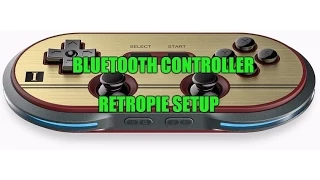 **Video Guide**: https://www.youtube.com/watch?v=EiDJFdWXweI
### Step 1 - Download and install the Bluetooth packages
Quit Emulation Station with F4 (stop it restarting by pressing another key within 5 secs) and type this at the command line:
`sudo apt update`
`sudo apt install bluetooth bluez python-gobject`
### Step 2 - Pairing and connecting the Bluetooth controller
Set your Bluetooth controller to pair in "joypad" mode. For example, for the FC30 Pro, you do this by holding the power switch for 3 secs. The guide is here: [FC30 Pro Manual](http://download.8bitdo.com/Manual/FC30_Pro_Manual_ENG_v1.0.pdf)
Type this at the command prompt
`hcitool scan`
This should find your controller and show its name and [MAC](https://en.wikipedia.org/wiki/MAC_address) address
Pair the controller with this command, replace the XX data with your MAC address
`sudo bluez-simple-agent -c DisplayYesNo hci0 XX:XX:XX:XX:XX:XX`
Tell the system to trust your controller so you dont have to pair every time
`sudo bluez-test-device trusted XX:XX:XX:XX:XX:XX yes`
Then connect to your controller with
`sudo bluez-test-input connect XX:XX:XX:XX:XX:XX`
Your controller should then connect, with the 8bitdo controllers this is shown by a solid blue light that will begin to glow.
### Step 3 - Making sure the connection attempt automatically starts when you reboot your Pi
You may find the controller connects on startup without issue, but if not try this. There are different ways to do this, but this should work to start the connection attempt when the Pi starts up.
Edit this startup file
`sudo nano /etc/rc.local`
above the line "exit 0" add
`bluez-test-input connect XX:XX:XX:XX:XX:XX`
Save the file with Ctrl-X and press Return to confirm the filename.
Now reboot the Pi.
### Step 4 - Configuring the controller using Emulation Station
Now the Pi is restarting, make sure your controller is turned on, and trying to pair (I tend to turn the controller on just before the RetroPie splashscreen appears), it should connect about when the Emulation Station splashscreen appears. Then Emulation Station will display with the "1 Gamepad Detected" message.
Hold a button down on the controller and follow the instructions to input your buttons.
When the is done, you click the "OK" button with the "A" button on the controller to enter Emulation Station.
This process will have configured your controller for navigating ES. It will also have created a controller file for RetroArch to use when you play games (If you are using at least RetroPie 3 beta 3).
However, the content of that file may not have the correct buttons mappings (I'm not sure why this doesn't always work, as its fine with most other controllers). So we will update that file correctly now.
### Step 5 - Updating the controller file for RetroArch
Press F4 to quit Emulation Station, and at the command prompt type
`cd /opt/retropie/configs/all/retroarch-joypads/`
`ls -lah`
This should display the configuration file you created, delete it (although the next steps should overwrite this anyway) with:
`rm {filename} `
for example
`rm 8BitdoFC30Pro.cfg`
Now we will recreate this using the retroarch controller script, type
`sudo /home/pi/RetroPie-Setup/retropie_setup.sh`
**--- This section is no longer accurate for Newer Releases of RetroPie- Please update these instructions. thanks----**
Choose the "Setup" option, then "Configure input devices for RetroArch" (Do **not** choose the "Install RetroArch joypad autoconfigs)
Then choose the "Configure joystick/controller for use with RetroArch" option
Follow the on-screen prompts to press the buttons when prompted.
If you make a mistake, just run it again, it happily overwrites the file it needs to.
-------------
There should be no need to edit the retroarch.cfg to get your controller working.
That should be all you need. Now when you start your Pi, set the controller to connect and it should be detected by Emulation Station and RetroArch based emulators.
### Troubleshooting
If you have installed other bluetooth programs, perhaps to support a PS3 controller, you may find there are conflicts and the above steps produce an error when you try to pair. One way around this is to uninstall the sixad program with:
`sudo apt purge sixad`
If you are unsure your USB Bluetooth dongle is detected with the Pi, you can list the USB devices with:
`lsusb`
The 8bitdo SFC30 controller appears to prefer to start with START + R (Right Shoulder) pressed to get into joystick mode.
Sometimes there can be issues with the pairing process, to start that again you can remove the joypad like this
`bluez-test-device remove XX:XX:XX:XX:XX:XX`
**Keep bluetooth scanning**
This should keep the Pi scanning for bluetooth devices in case the pair is lost.
`sudo nano /etc/init.d/rc.local`
`add “sudo hciconfig hci0 up piscan” (without the quotes) above the line that says “exit 0”`
`ctrl x`
`y`
`enter`
`sudo reboot`
**Some useful threads**
http://blog.petrockblock.com/forums/topic/8bitdo-bluetooth-controller-setup-retropie-v3/
http://blog.petrockblock.com/forums/topic/the-old-story-setting-up-2x-8bitdo-nes30-bluetooth/
http://forum.8bitdo.com/thread-328-1-1.html
https://wiki.archlinux.org/index.php/bluetooth#Bluetoothctl
https://wiki.archlinux.org/index.php/bluetooth_keyboard
http://8bitdo.com/Support.html
https://www.reddit.com/r/RetroPie/comments/4d5hcf/how_to_setup_8bitdo_nes30_fc30_pro_controllers_on/
https://github.com/libretro/retroarch-joypad-autoconfig/tree/master/udev
https://retropie.org.uk/forum/topic/20303/rpi-3-b-tricky-bluetooth-problem-with-multiple-ps3-controllers/
**Video Guide**: https://www.youtube.com/watch?v=EiDJFdWXweI
### Step 1 - Download and install the Bluetooth packages
Quit Emulation Station with F4 (stop it restarting by pressing another key within 5 secs) and type this at the command line:
`sudo apt update`
`sudo apt install bluetooth bluez python-gobject`
### Step 2 - Pairing and connecting the Bluetooth controller
Set your Bluetooth controller to pair in "joypad" mode. For example, for the FC30 Pro, you do this by holding the power switch for 3 secs. The guide is here: [FC30 Pro Manual](http://download.8bitdo.com/Manual/FC30_Pro_Manual_ENG_v1.0.pdf)
Type this at the command prompt
`hcitool scan`
This should find your controller and show its name and [MAC](https://en.wikipedia.org/wiki/MAC_address) address
Pair the controller with this command, replace the XX data with your MAC address
`sudo bluez-simple-agent -c DisplayYesNo hci0 XX:XX:XX:XX:XX:XX`
Tell the system to trust your controller so you dont have to pair every time
`sudo bluez-test-device trusted XX:XX:XX:XX:XX:XX yes`
Then connect to your controller with
`sudo bluez-test-input connect XX:XX:XX:XX:XX:XX`
Your controller should then connect, with the 8bitdo controllers this is shown by a solid blue light that will begin to glow.
### Step 3 - Making sure the connection attempt automatically starts when you reboot your Pi
You may find the controller connects on startup without issue, but if not try this. There are different ways to do this, but this should work to start the connection attempt when the Pi starts up.
Edit this startup file
`sudo nano /etc/rc.local`
above the line "exit 0" add
`bluez-test-input connect XX:XX:XX:XX:XX:XX`
Save the file with Ctrl-X and press Return to confirm the filename.
Now reboot the Pi.
### Step 4 - Configuring the controller using Emulation Station
Now the Pi is restarting, make sure your controller is turned on, and trying to pair (I tend to turn the controller on just before the RetroPie splashscreen appears), it should connect about when the Emulation Station splashscreen appears. Then Emulation Station will display with the "1 Gamepad Detected" message.
Hold a button down on the controller and follow the instructions to input your buttons.
When the is done, you click the "OK" button with the "A" button on the controller to enter Emulation Station.
This process will have configured your controller for navigating ES. It will also have created a controller file for RetroArch to use when you play games (If you are using at least RetroPie 3 beta 3).
However, the content of that file may not have the correct buttons mappings (I'm not sure why this doesn't always work, as its fine with most other controllers). So we will update that file correctly now.
### Step 5 - Updating the controller file for RetroArch
Press F4 to quit Emulation Station, and at the command prompt type
`cd /opt/retropie/configs/all/retroarch-joypads/`
`ls -lah`
This should display the configuration file you created, delete it (although the next steps should overwrite this anyway) with:
`rm {filename} `
for example
`rm 8BitdoFC30Pro.cfg`
Now we will recreate this using the retroarch controller script, type
`sudo /home/pi/RetroPie-Setup/retropie_setup.sh`
**--- This section is no longer accurate for Newer Releases of RetroPie- Please update these instructions. thanks----**
Choose the "Setup" option, then "Configure input devices for RetroArch" (Do **not** choose the "Install RetroArch joypad autoconfigs)
Then choose the "Configure joystick/controller for use with RetroArch" option
Follow the on-screen prompts to press the buttons when prompted.
If you make a mistake, just run it again, it happily overwrites the file it needs to.
-------------
There should be no need to edit the retroarch.cfg to get your controller working.
That should be all you need. Now when you start your Pi, set the controller to connect and it should be detected by Emulation Station and RetroArch based emulators.
### Troubleshooting
If you have installed other bluetooth programs, perhaps to support a PS3 controller, you may find there are conflicts and the above steps produce an error when you try to pair. One way around this is to uninstall the sixad program with:
`sudo apt purge sixad`
If you are unsure your USB Bluetooth dongle is detected with the Pi, you can list the USB devices with:
`lsusb`
The 8bitdo SFC30 controller appears to prefer to start with START + R (Right Shoulder) pressed to get into joystick mode.
Sometimes there can be issues with the pairing process, to start that again you can remove the joypad like this
`bluez-test-device remove XX:XX:XX:XX:XX:XX`
**Keep bluetooth scanning**
This should keep the Pi scanning for bluetooth devices in case the pair is lost.
`sudo nano /etc/init.d/rc.local`
`add “sudo hciconfig hci0 up piscan” (without the quotes) above the line that says “exit 0”`
`ctrl x`
`y`
`enter`
`sudo reboot`
**Some useful threads**
http://blog.petrockblock.com/forums/topic/8bitdo-bluetooth-controller-setup-retropie-v3/
http://blog.petrockblock.com/forums/topic/the-old-story-setting-up-2x-8bitdo-nes30-bluetooth/
http://forum.8bitdo.com/thread-328-1-1.html
https://wiki.archlinux.org/index.php/bluetooth#Bluetoothctl
https://wiki.archlinux.org/index.php/bluetooth_keyboard
http://8bitdo.com/Support.html
https://www.reddit.com/r/RetroPie/comments/4d5hcf/how_to_setup_8bitdo_nes30_fc30_pro_controllers_on/
https://github.com/libretro/retroarch-joypad-autoconfig/tree/master/udev
https://retropie.org.uk/forum/topic/20303/rpi-3-b-tricky-bluetooth-problem-with-multiple-ps3-controllers/